Product concept and interface design / 2026
Media
Workbench
Find and clip sections
of audio and video.
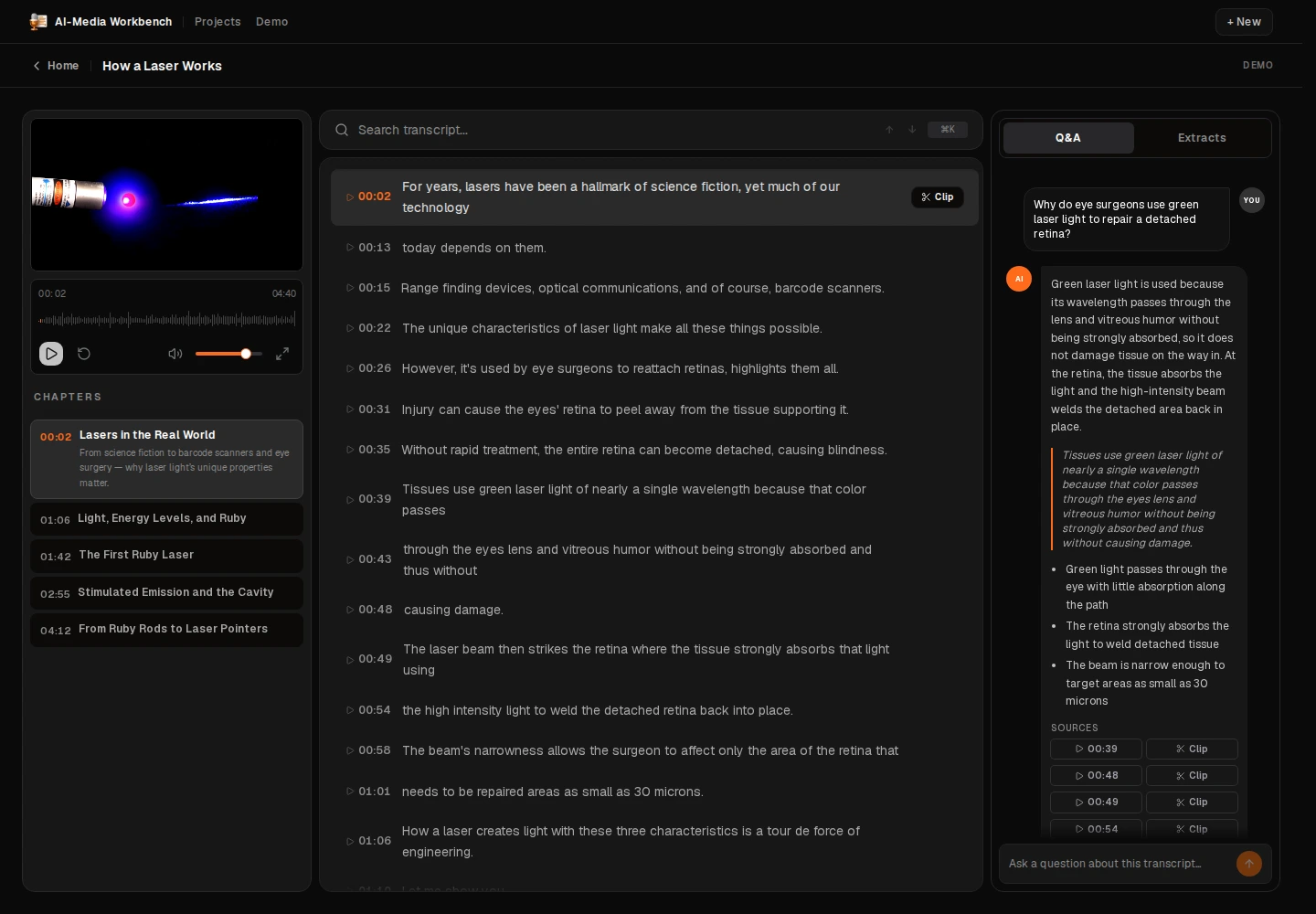
I designed Media Workbench to help people find specific parts of a recording. Users can search the transcript, choose a chapter, or follow a source link from an answer.
They can play that section to check it, then export it as an audio or video clip. The player, transcript, and answers stay in one workspace.
My role
I developed the feature ideas and designed the layout and workflows. AI generated most of the implementation. My contribution here is product concept and interface design.
The task
Find a relevant section in a recording, check it in context, and save that part for later use. The transcript provides searchable text. Source links connect that text to playback and clip export.
The workflow
Finding a section
Search the transcript or choose a chapter.
Chapters divide the recording by topic. Transcript search finds specific words and lets users move between matches.
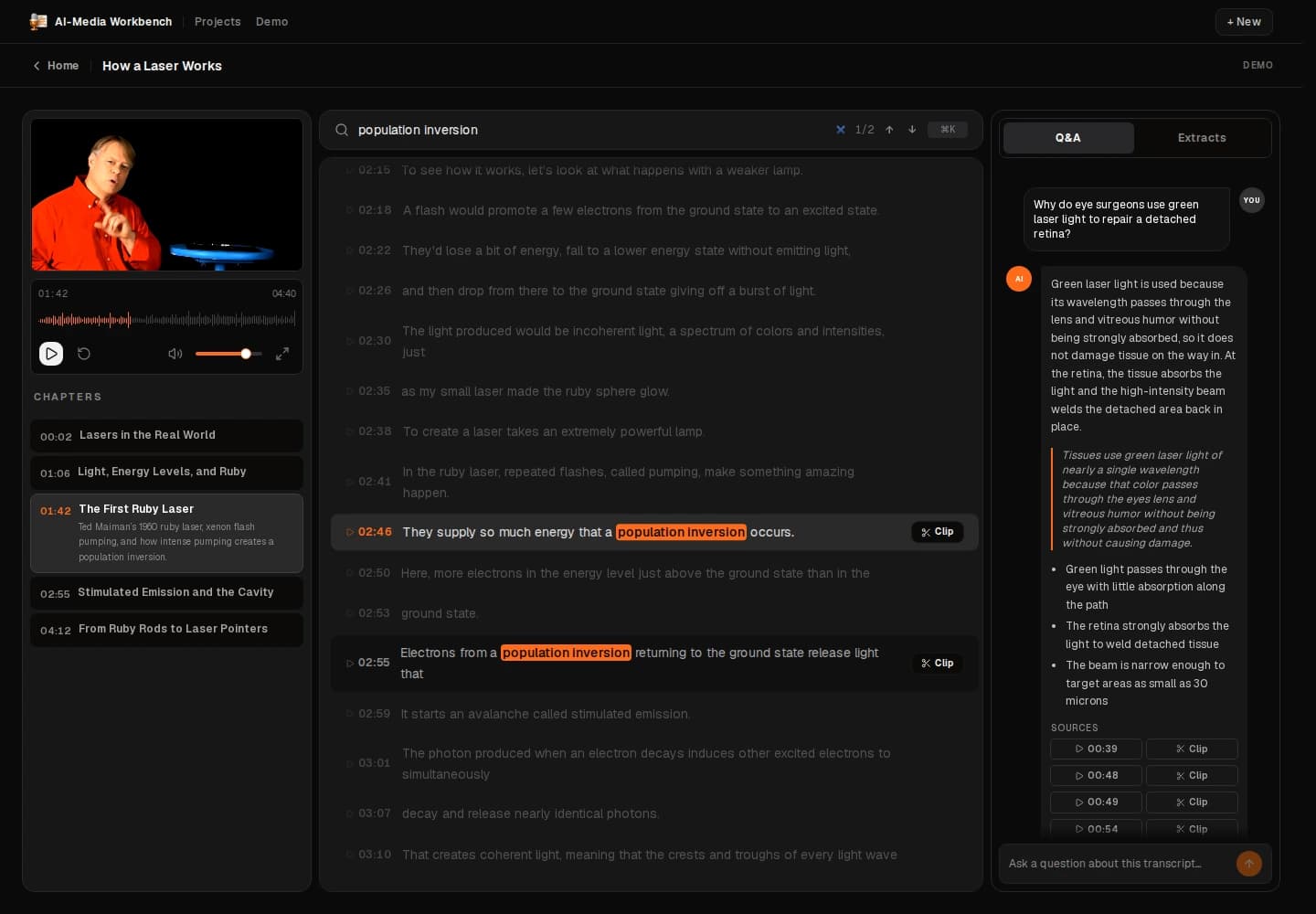
The search for population inversion finds two sections. Matching words are highlighted within the surrounding transcript.
Actual Media Workbench demo capture · October 2026Layout
I placed the transcript beside the player so users can read a section and check it in the recording. Questions and answers have their own column.
Navigation
A chapter opens at its start time. Search highlights matching words while keeping the surrounding transcript visible. Previous and Next controls move between matches.
Read, then play
Moving between search matches does not start playback. Selecting a transcript row plays that section. This gives users a way to check the text before listening.
Source links
Check an answer against the recording.
Each answer has links to the sections it cites. Selecting a timestamp plays that range and highlights its transcript row.
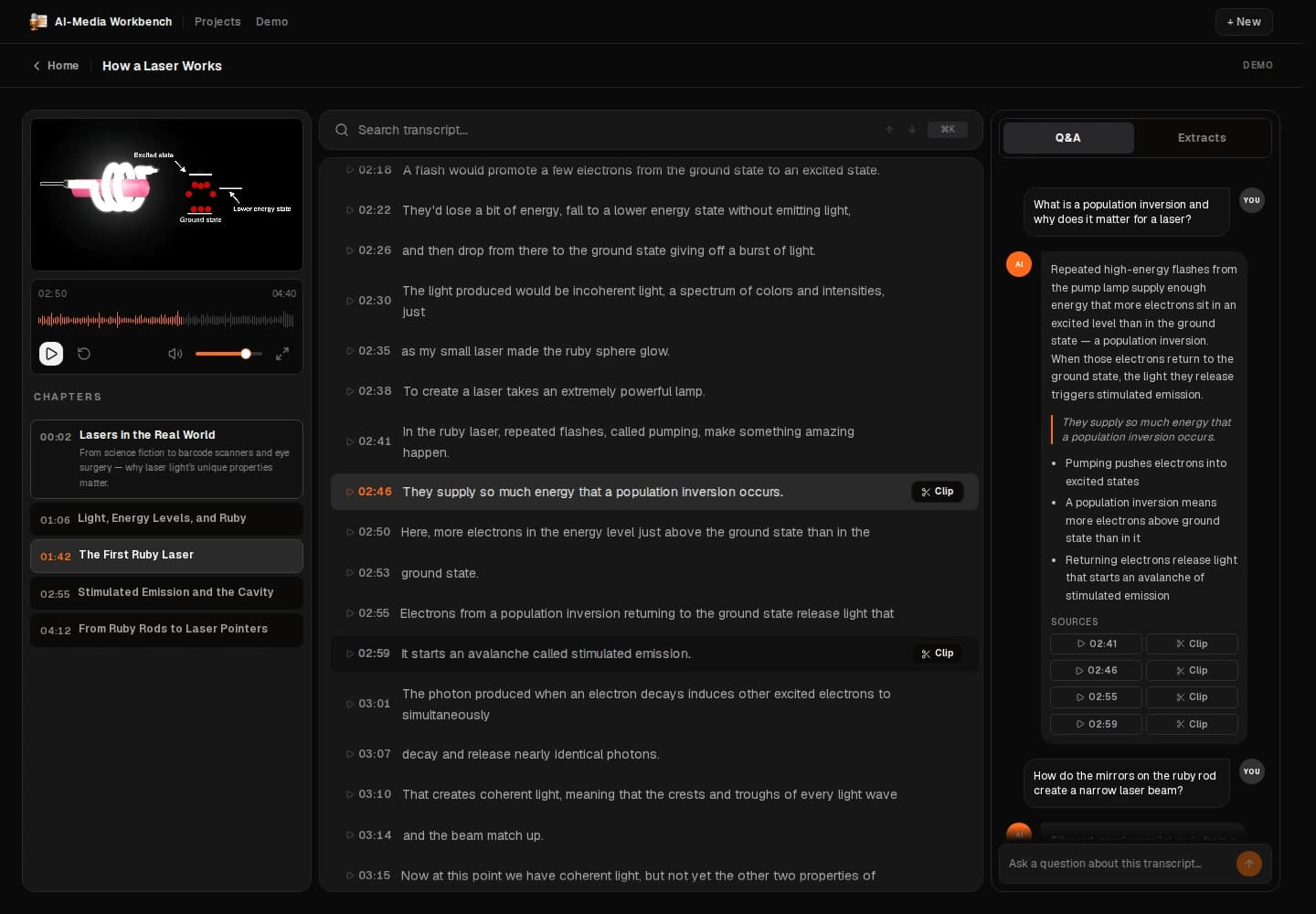
Playback stops at the end of the cited range, near 02:50. The selected transcript row remains available for reading.
Actual Media Workbench demo capture · October 2026The decision
I wanted users to be able to check an answer at its source. The timestamp opens the relevant part in the existing player, with the answer still beside it.
Section playback
Playback starts at the cited time and stops when that section ends. Quotes and insights in the Extracts tab also have source links.
A source that opens
The timestamp is a playback control. It connects the answer, the transcript section, and the media range. Users can inspect each of them in the same workspace.
Audio and video clips
Export the section you found.
Clip uses the section's start and end times. Video projects produce MP4 files. Audio projects produce MP3 files.
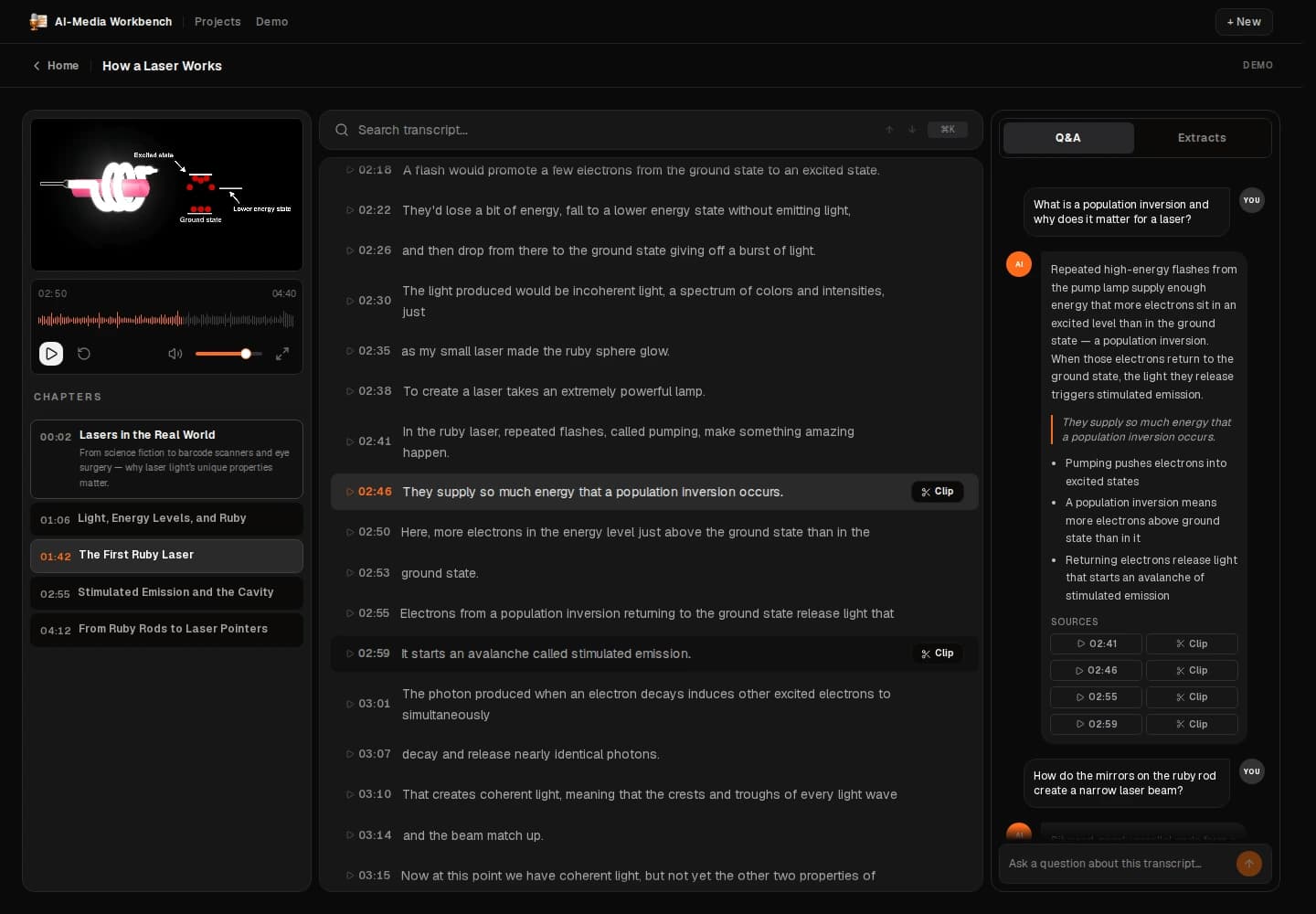
The source link and adjacent Clip action refer to the same section, from 02:46.280 to 02:50.080.
Actual Media Workbench demo capture · October 2026Placement
Clip sits beside the source timestamp and on transcript rows. Users can export the section from the place where they found it.
The range
The playback and export actions use the same time range. This example exports 3.8 seconds, from 02:46.280 to 02:50.080.
Sample exports
These files contain the same section. The MP4 came from the video demo. The MP3 came from an audio project made from the same sample recording.
Implementation and source
The export passes the selected time range to ffmpeg and returns a downloadable file. The media type determines the output format.
Summary
Demo and scope
The recordings use the app's seeded demo, including its prepared transcript and sample answers. The sample media is Bill Hammack's How a Laser Works.
The full processing workflow runs locally. This case study shows navigation, source playback, and verified clip exports. I have not measured a change in task completion time.